Troubleshooters.Com®, Linux Library, and T.C Void Linux Subsite Present:
Void Linux: Using Xsane With a Brother MFC-L5850DW Scanner
Copyright © 2025 by Steve Litt
See the Troubleshooters.Com Bookstore.
Contents:
Feedback from this web page indicates that for a lot of people, perhaps even the majority, Brother scanners "just work" out of the box. This tends to be the case for those using Redhat style or Debian style package managers.
If your Brother scanner works right out of the box, obviously you don't need to read this page. If your Brother scanner (or any other scanner) doesn't work out of the box, read on, you are not alone...
Brother printers and scanners are famous for their Linux comparability, but there's a caveat. They give you all the necessary software for the scanner, as long as your Linux distro's packaging system is Debian or Redhat compatible. They have a source code package download directly from brother-usa.com, but I found this source impossible to get running on my Void Linux system, which uses the XBPS packaging system. XBPS is not supported by Brother.
Note:
This is being written on November 1, 2025, when the Brother-USA.Com site is down for maintenance, so it's possible that it now has better support for non-Debian, non-Redhat derived distros, but as of today this can neither be proved nor disproved, so I'll go on my memories of past attempts to get xsane working on my Void system with my Brother MFC-L5850DW series printer/scanner.
This document tells the story of how I got Void, xsane and my scanner to work together. It's a story, not a set of instructions. It may or may not work for you. I have a feeling that it will prove valuable to quite a few people with non-Debian, non-Redhat packaging systems, but that's just my suspicion.
I've been trying unsuccessfully to get xsane working with this scanner for ten years. Today, ChatGPT helped me set it up in less than an hour. Many will argue that if I were smarter/more technical/better reader/etc I wouldn't have needed to resort to ChatGPT, which they consider "Vibe Coding". OK fine, for sure for sure, but even with my supposed low IQ ChatGPT helped me solve this problem in less than an hour.
My setup is as follows:
xsane installed, but didn't find the printer until today.system-config-printer, etc.xsane installed.xsane nor any other program would report my Brother MFC-L5850DW device until today.This section describes the bare minimum architecture information about the system, in order that you can understand how I got things to work. A later section goes into more detail.
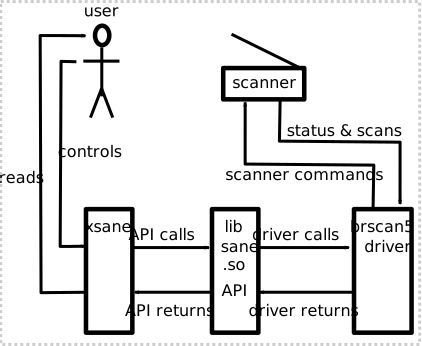
In the preceding diagram, going in the direction from user to scanner:
xsane program.
xsane is a GUI program providing a human interface to the scanner. It first finds the scanner, then provides the human interface. xsane enables the user to easily make choices such as output file, flatbed glass or document feeder, color model, resolution, geometry, histogram editing, and other things depending on the scanner's capabilities. It also provides a very nice previewer that scans at a very low resolution to speed things up, then allows you to crop, histogram, lighten, darken, etc, as needed.
xsane makes API calls to libesane.so.
libsane.so is an API for an idealized scanner. The SANE system uses it for all scanners.
libsane.so makes driver calls to the brscan5 driver.
libsane.so translates these high level idealized API calls into driver calls the scanner's driver recognizes, and sends those driver calls to Brother's brscan5 driver software. On Void Linux, the brscan5 driver software is actually located at /usr/lib/sane/libsane-brother5.so, which is provided by Brother.
First of all, the brscan5 driver is actually /usr/lib/sane/libsane-brother5.so on Void Linux. Your mileage may differ with different distros. This is a .so file, not a .ko file, meaning it's a userspace driver, not a kernel space driver, meaning that its calls go to the kernel for handling, as opposed to going straight to the scanner. The purpose of a driver, any driver, is to translate software commands into "stuff" for the hardware, where "stuff" might be data over a protocol, or a voltage or current, or a frequency, or a measure of movement, or pretty much anything else. The driver is the converter between software/data and physicality.
In the preceding diagram, going in the direction from scanner to user:
libsane.so API can understand and sends it to the libsane.so API.libsane.so API translates the information to a form xsane can understand, and sends it to xsane.xsane displays the information in a form the user can work with.xsane dynamically loads API libsane.so so the API code is available to xsane. Then the code in libesane.so loads the code in the brscan5 driver. The brscan5 driver is located at /usr/lib/sane/libsane-brother5.so on Void Linux. Now the driver is available to the API, and therefore indirectly to xsane.
The preceding brings up an obvious question: How do all these softwares know how to load each other? This is an especially vexing question because different Brother scanners use different driver software. Brscan5, brscan4, and brscan3 all provide drivers for different sets of Brother reasonably modern scanners, with brscan2 and brscan1 covering ancient scanners you might find at an estate sale for an octogenarian couple. Further complicating all of this is that different brands of scanners need different drivers, and you might have a system with multiple scanners. Ugh!
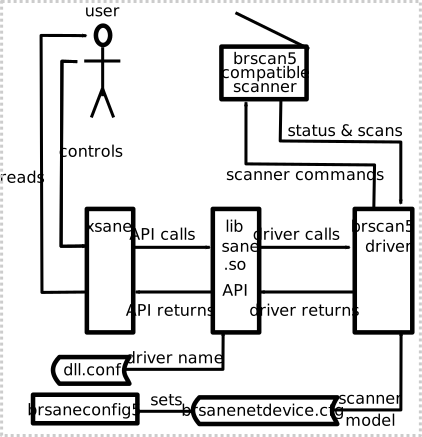
The answer is simple: Config files are queried to get the information. The following diagram shows those config files and the program used to set one of them, completing your Mental Model of the Void to Brother-Scanner interface:
Warning!
The preceding diagram works only on brscan5 compatible scanners. A brscan4 compatible scanner would need the brscan4 driver. An Epson scanner would need a completely differenrt driver.
The following is a list of the labels on the preceding diagram, and their full filenames on my computer:
/usr/bin/xsane/usr/lib/libsane.so.1/usr/lib64/sane/libsane-brother5.so.1/etc/sane.d/dll.conf/opt/brother/scanner/brscan5/brsanenetdevice.cfg/usr/bin/brsaneconfig5The following list overviews the purposes of these config files:
dll.conf
This tells libsane.so which drivers it must try to load. To work with the my Brother MFC-L5850DW, the brscan5 driver must be used, so if a line with the string "brother5" isn't in dll.conf, such a line must be appended to a line at the bottom of the file. When libsane.so starts, it scans dll.conf, and for each entry tries to load that string with "libsane-" prepended and ".so" appended. So Brother's driver filename for this scanner is libsane-brother5.so. It's actually a little more complicated, but good enough for now. So this string in dll.conf gets the driver loaded.
brsanenetdevice.cfg
The SANE API knowing the scanner driver software file isn't enough, because Brother scanner driver file contains drivers for many, many scanners. The scanner driver software must be told which model scanner(s) you have, and where it (they) is (are) on the network. This information is contained in brsanenetdevice.cfg. Note that the approved, canonical way of writing this file is with the brsaneconfig5 executable program provided by Brother, available via the Brother scanner package. Issue command brsaneconfig5 -h to learn how to, and be careful not to accidentally delete a scanner model's line. The following is the contents of my /opt/brother/scanner/brscan5/brsanenetdevice.cfg:
[slitt@mydesk brscan5]$ cat /opt/brother/scanner/brscan5/brsanenetdevice.cfg
DEVICE=MFC-L5850DW , "MFC-L5850DW" , Unknown , IP-ADDRESS=192.168.0.13

[slitt@mydesk brscan5]$
Your scanner driver communicates with your networked scanner via TCP and UDP. Brother has specified the following two ports for communication to a network scanner:
These aren't IANA registered ports, but their use is pretty well known. So, to get the Brother scanner to communicate with a networked scanner, the following two rules must be added to your iptables:
-I INPUT -p tcp --dport 54921 -j ACCEPT
-I INPUT -p udp --dport 54925 -j ACCEPT
In most cases you can change the -I to -A if you want to, unless a previous rule contradicts this one. Note that these ports aren't opened for OUTPUT. This is because most Linux firewalls are default open for all OUTPUT and all protocols. If yours is locked down tight, default denying OUTPUT, you'll need to add another two rules to open the same ports for the same protocols for OUTPUT.
NOTE:
My reverse engineering shows that on my system only TCP port 54921 OUTPUT is required to operate your scanner. However, to have an easy time in scannerland, I'd recommend opening both ports for both INPUT and OUTPUT. Later, once everything's working, you can drop what isn't needed, or just not ACCEPT UDP 54925, and if everything still works, you're good to go.
saned?saned is a server daemon to make your USB connected scanner available on your LAN. My scanner is connected via the network, so the SANE software and the printer driver can be put on any computer on my LAN so the scanner could be used by any computer on the LAN.
But what if my scanner were connected to my computer via USB and didn't have network capability? In that case, the only way to make the scanner available LAN wide would be to run the saned server, so SANE software on other computers could access the sane server. It's usually a bad idea to run saned if your scanner has network capabilities, because of the added redundancy, complexity, and security issues.
saned operates on port 6566 using TCP.
This is important to know. The brscan5 driver is not composed of many different drivers for many different brscan5 compatible scanners. That's not how it works. The brscan5 driver is exactly one, reasonably simple driver for all brscan5 compatible scanners. Which brings up the question, how does one driver work with so many different scanners with different capabilities, different equipment (feeder or not, etc), different APIs, and different defaults. I'm glad you asked...
Here's what happens, according to my reverse engineering. The brscan5 driver sends out queries to every device on your network. I don't know whether it uses the ip route command to do this, or something else, but it finds out your subnet, and queries everything on it. The following is a cartoon of the this paragraph:
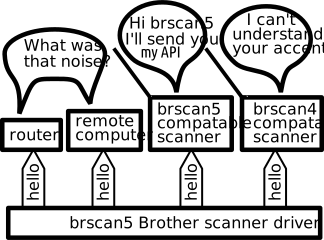
For everything other than a Brother scanner, it sounds like some random noise and is ignored. For non-brscan5 compatible scanners, it sounds like some sort of almost recognizeable stuff, so it's ignored. But brscan5 compatible scanners hear it and say, "great, I'll send you my API, capabilities, equipment list and defaults, and then, as shown in the next cartoon panel, sends all of that back to the brscan5 driver. The following cartoon panel shows what happens next:
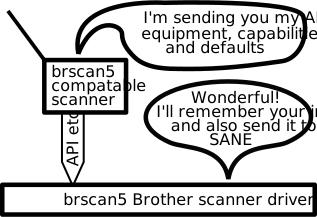
The preceding cartoon panel simplifies what really happens. The brscan5 compatible scanner sends its API, equipment, capabilities and defaults to the brscan5 driver, which adds this additional API to its current API. In effect, the scanner has taught the brscan5 driver the language needed to give the scanner orders. This is how a relatively simple driver can talk to so many seemingly different machines: It asks the machine for its API and incorporates it. But we're not done yet. The brscan5 driver needs to give this information to the SANE API. See the following cartoon panel:
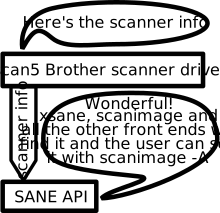
To summarize, brscan5 queries everything on your network, and only brscan5 compatible scanners respond. They respond by sending their API, equipment, capabilities and defaults to brscan5. The brscan5 driver then sends this info to the SANE API, which makes it available to all SANE front ends including xsane and scanimage. You, as a user, can see all this info by running the command scanimage -A. The following is the relevant output from my Brother MFC-L5850DW scanner, as passed through to brscan5 and then SANE:
All options specific to device `brother5:net1;dev0':
    --mode 24bit Color[Fast]|Black & White|True Gray|Gray[Error Diffusion] [24bit Color[Fast]]
        Select the scan mode
    --resolution 100|150|200|300|400|600|1200|2400|4800|9600dpi [100]
        Sets the resolution of the scanned image.
    --source FlatBed|Automatic Document Feeder(left aligned)|Automatic Document Feeder(center aligned)|Automatic Document Feeder(left aligned,Duplex)|Automatic Document Feeder(center aligned,Duplex) [Automatic Document Feeder(left aligned)]
        Selects the scan source (such as a document-feeder).
    --brightness -50..50% (in steps of 1) [inactive]
        Controls the brightness of the acquired image.
    --contrast -50..50% (in steps of 1) [inactive]
        Controls the contrast of the acquired image.
    --MultifeedDetection[=(yes|no)] [inactive]

    --AutoDocumentSize[=(yes|no)] [inactive]

    --AutoDeskew[=(yes|no)] [no] [advanced]

    --SkipBlankPage[=(yes|no)] [no] [advanced]

    --SkipBlankPageSensitivity 0..100% (in steps of 1) [inactive]

    -l 0..215.9mm (in steps of 0.0999908) [0]
        Top-left x position of scan area.
    -t 0..355.6mm (in steps of 0.0999908) [0]
        Top-left y position of scan area.
    -x 0..215.9mm (in steps of 0.0999908) [215.88]
        Width of scan-area.
    -y 0..355.6mm (in steps of 0.0999908) [355.567]
        Height of scan-area.
So among many things, scanimage -A tells me that my available resolutions are 100, 150, 200, 300, 400, 600, 1200, 2400, 4800 and 9600dpi, with the default being 100. It tells me that there are many possible sources, including FlatBed and several automatic feeder choices, and that "Automatic Document Feeder(left aligned)" is the default. It tells me I can vary both the brightness and the contrast between -50% and +50 percent, in steps of 1%. It tells me many other things. And best of all, it tells me the long options (the strings preceded with two hyphens) that I can use with scanimageto accomplish these adjustments. This architecture is brilliant. Thanks Brother!
Note:
I performed these steps before I had reverse engineered the system and made an adequate Mental Model. Keep this in mind as you read the steps.
Different software issued different error messages, but the majority of software failed to find a scanner. The following is a list of steps I took, but not necessarily in this order:
/opt/brother/scanner/brscan5/brsaneconfig5 -a name=MFC-L5850DW model=MFC-L5850DW ip=192.168.0.13 This command places my MFC-L5850DW into several files that it otherwise wouldn't have appeared in. These file changes survive reboots.scanimage -L . If the preceding command outputs "device `brother5:net1;dev0' is a Brother", then the preceding step succeeded.sane to work, your iptables setup must allow input of port 54921 for tcp and port 54925 for udp. I did it by adding the following to my /etc/iptables/iptables.rules, which you may or may not have:
### ALLOW SANE/XSANE, FROM CHATGPT
-A INPUT -p tcp --dport 54921 -j ACCEPT
-A INPUT -p udp --dport 54925 -j ACCEPT
Remember your modification must survive reboots. Ask AI for help as necessary. Note that in some cases you'll need to use -I (insert at front) instead of -A (append to back).
grep -i brother /etc/sane.d/dll.conf . It should output "brother5", and might output some other things. On my computer, it also outputted "brother3". If it doesn't output "brother5", as root edit /etc/sane.d/dll.conf and place a line with the string brother5 at the bottom of the file. Then perform another scanimage -L to test again.scanimage --format=png > test.pngIf the scanner scans, verify that test.png matches the paper you put in. If it complains that "document feeder is empty", place the paper (probably face up, check your scanner instructions) in the document feeder and try again. If it works, you're good to go. Worry about flatbed scanning later. If you have no document feeder and it complains that the document feeder is empty, you're probably still OK.
xsane : The program searches for scanners, finds yours, and presents a dialog box. One of your choices is source, which has an icon of an ancient flatbed scanner. Click it and choose between Flatbed and perhaps several versions of Automatic Document Feeder. You'll also see resolution. Start small, like 100, because that scans quickly and doesn't stress your RAM. Save things like 600 and 1200 for small photos in excellent condition.Several places in this document I've suggested you "ask AI" when you get stuck at a step. ChatGPT is one AI, specifically a Large Language Model (LLM), amenable to repeated refinement of questions. Other LLMs include Claude, Perplexity.AI, and several others.
For a quick and dirty answer to a question, Google is your friend, because it produces an AI answer to your specific closed ended question, something like one of the following:
On the first two queries Google gives helpful results. On the third query its lack of specificity produces ambiguity rendering its response useless.
When querying Google, it's vital to make your question unambiguous. It's also necessary to make it a narrow range question that can be answered with one response. You want Google to think convergently, not divergently. If you don't know what I mean, ask Google the following two questions:
Google's AI will give you the needed answers. With Google AI's current capabilities, today you rarely need to use Dictionary.Com.
Effectively querying an LLM (Large Language Model) is a skill. Make your question(s) specific and non-ambiguous. If working on a problem, tell the LLM what diagnostic tests you've done so far, and the observed results. Ask the LLM "Please tell me a maximum of three diagnostic tests I should do next to narrow down this problem. The reason I put a maximum of three on it is to prevent it from turning into a costly (in terms of money, electricity, etc) brainstorming session."
The following is my initial query about scanning, made to ChatGPT:
I have a Brother MFC-L5850DW series printer with scanner connected to my Void Linux computer. The Brother printer/scanner is at 192.168.0.1, which is on my local 192.168.0 subnet. The computer works just fine with the printer portion, but not with the scanner, so I must scan to USB and sneakernet to my computer. Very inconvenient.
I was unable to get xsane to help me. I was unable to get /opt/brother/scanner/brscan5/brsaneconfig5 -q to detect my scanner at http://192.168.0.13/general/status.html , even though my browser finds my Brother printer at that address.
How can I take a step closer to being able to control my scanner from my Void Linux computer?
Several things about my preceding prompt: I initially said the printer/scanner was at 192.168.0.1, when it was really at 192.168.0.13. Later, when I corrected that, ChatGPT took it in stride. Notice I described the printer's network setup, and the thumb-drive-sneakernet stuff I had to do to scan things. I revealed how xsane wouldn't find the printer at 192.168.0.13, even though I could browse to that address with my browser. My final question was "How can I take a step closer to being able to control my scanner from my Void Linux computer?" I phrased it that way to keep it specific and avoid divergent brainstorming.
In fact, ChatGPT gave me about six diagnostic moves. With a very short discussion, all the problems were solved and xsane could control my scanner.
When speaking of the Soviet Union in the 1980's, president Ronald Reagan said "trust, but verify". The same is true of LLMs today. Speaking at least for ChatGPT, which I know the most about, it's against ChatGPT's principles to utter the words "I don't know." I presume other LLMs are trained the same way. So you need to verify everything your LLM tells you, either by putting it into action, consulting other LLMs, consulting mailing lists and IRC channels, or performing web searches.
Like that teacher you had a long time ago who knew less than you, you need to say "but then how does so and so happen?" The teacher or LLM then reconsiders and gives a more informed answer.
This is also the reason why you don't have your LLM write whole programs for you. That humongous program is bound to contain errors that would take you an hour or more, or perhaps days to find. Instead you ask your LLM about one data structure, or one class, or one algorithm, get that working and use it as a module. This is the way you use LLMs to build muscular, durable software, or find durable, muscular ways to accomplish something such getting xsane and a network printer to work together.
I chose to use an LLM because it's correct more often than your average developer, admin or dev-op. Not the best developer, admin or dev-op, but the average one. And these days, with everyone claiming to be a "10x Engineer" (saaaay whaaaat?), finding a competent person to give you advice is a needle in a haystack. And even if you find him or her, you can bet others will have found them too, and they'll be way to busy to give you the individual attention you need for a quick solution. So like it or not, you're back to asking average technologists, and they're wrong a lot more than your LLM, assuming you pay the same attention to asking unambiguous questions and supplying unambiguous information to each.
When you ask a question on your favorite mailing list or IRC channel, you'd better have done your homework. Read the Fantastic Manual (RTFM). Perform a web search. Never mind that today's manuals are incomplete, ambiguous and often just plain wrong. And as far as a web search, many of them answer the wrong question. Many give answers for 13 year old software. Many are just what worked for the individual, paying no attention to the underlying technology. Many are fourth hand copy/modifies that are just plain wrong.
So finally, 20 minutes later, you've done your homework and ask your question. And BANG, somebody's going to call you stupid, say you should use a different product (with no knowledge of your situation). Then others jump in, hijacks the conversation and steers the conversation to some distant tangent, of course without changing the subject line. So you need to peruse 50 email messages to find one that talks about your initial question.
Or else your question is greeted with silence, even by people who know the answer. You can even prove they knew the answer by invoking Steve Litt's Surefire Way to Get Answers.
There was a time when mailing lists, IRC channels, web searches and manuals were the best game in town, but with the advent of LLMs, that's all changed. In a few seconds, an LLM can consider hundreds of web posts, find areas of agreement, and give you an answer with a pretty good likelihood of being right. Then you just verify, implement and troubleshoot, for an excellent modular solution.
Getting it working isn't the end of your duties. You must understand what you've done. Continue asking your LLM why it recommended something or how something works, until you could do it yourself. Armed with this knowledge, you can debug it as needed, or add features. Also, this knowledge makes it much easier for you to accomplish similar tasks, and the more tasks you complete in the tech sphere, the more resemblance you see between new tasks and the tasks you've already completed.
The good news: As you've seen from earlier diagrams, the scanner setup is very modular.
The bad news: These modules are connected by binary linkage, not by thin interfaces. As a result, it's very difficult to measure or signal inject at those binary linkage interfaces.
This section is devoted to troubleshooting a scanner setup, and as an example uses my Brother MFC-L5850DW scanner. Because it's so hard to put a probe or signal injection onto an interface, it's best to perform the easy diagnostic tests first, before getting into half-splitting operations.
On Void Linux, install driver packages brother-brscan3, brother-brscan4, and brother-brscan5. This maximizes your chance for early success, and minimizes your chance for long, frustrating troubleshooting with multiple variables. You do this because you cannot be sure whether your scanner uses the brscan3, brscan4, or brscan5 Brother driver. The three driver packages do not conflict with each other, so there's no downside to doing this. On other distros, install the equivalent packages. Make it easy on yourself and install all three. You can uninstall the unneeded ones once you can perfectly control your scanner from your computer.
If you have a network-connected scanner, make sure you have a network connection to it. Start by pinging it, which in my case looks like the following:
[slitt@mydesk void]$ ping -c3 192.168.0.13
PING 192.168.0.13 (192.168.0.13) 56(84) bytes of data.
64 bytes from 192.168.0.13: icmp_seq=1 ttl=255 time=0.858 ms
64 bytes from 192.168.0.13: icmp_seq=2 ttl=255 time=0.936 ms
64 bytes from 192.168.0.13: icmp_seq=3 ttl=255 time=0.837 ms

--- 192.168.0.13 ping statistics ---
3 packets transmitted, 3 received, 0% packet loss, time 2033ms
rtt min/avg/max/mdev = 0.837/0.877/0.936/0.042 ms
[slitt@mydesk void]$
If the ping doesn't work, you must fix the scanner's network connectivity problem before proceding, because you can't admin a scanner you can't reach.
Once you can ping, try connecting to it in a browser. Most modern Brother computers contain a tiny web server on port 80 to facilitate information and administration.
elinks http://192.168.0.13
The preceding might require https, so if http doesn't work, try https. If you can't browse to your scanner, it might or might not indicate trouble. Just make a note of it.
This subsection comes from many hours of reverse engineering, and I'm confident beyond a reasonable doubt that it's true. The brscan5 driver does not find the scanner based on anything in config files, assuming brscan5 is installed, and listed in dll.conf. Instead, brscan5 searches your entire network, sending proprietary Brother messages to each device. Every brscan5-compliant scanner responds to this by sending back to brscan5 driver all its API, capabilities, hardware and state. The brscan5 driver does not contain individual drivers for each scanner it can work with. Instead it has a Brother-proprietary API to which all brscan5 compliant scanners adhere. So in effect, the queried scanner answers by sending brscan5 its own sub-API. When you think of it, this is a very sophisticated way of doing things.
Oddly, the one thing the brscan5 compliant scanner doesn't send back is the IP address it was contacted on. Instead, config file brsanenetdevice.cfg must contain the scanner's IP address. This seems bizarre to me, but there must have been a reason.
Bottom line, to see the brscan5 compliant scanner on your subnet, all the brscan5 driver needs is for a line containing only brother5 to exist in dll.conf, and for a syntactically valid line to exist in brsanenetdevice.cfg, and of course for the brother-brscan5 package to be installed so that the brscan driver is installed, and of course the sane and libsane packages should be installed.
To actually operate the scanner, a syntactically valid line in the brsanenetdevice.cfg must have the IP address of the brscan5 compatible scanner, and my reverse engineering says that certain ports must be enabled (ACCEPT in your firewall). My reverse ChatGPT recommends bidirectional packet travel through these two ports:
Although my reverse engineering indicates that TCP port 54921 OUTPUT is the only essential port that needs ACCEPT for the system to work, my suggestion is to have a nice, easy life in scannerland, you follow ChatGPT's advice and open both ports bidirectionally, because this is how the brscan5 driver gives specific instructions to the scanner, and possibly how it receives return codes from those instructions. Later you can DROP what's not essential. By repeatedly changing my firewall rules, I learned that contrary to ChatGPT's opinion, I learned that ports TCP 54921 and UDP port 54925 aren't relevant to brscan5 finding brscan5 scanners, and only TCP port 54921 OUTPUT is required for scanning.
The following command line session shows the output when SANE sees the scanner:
[slitt@mydesk ~]$ scanimage -L
device `brother5:net1;dev0' is a Brother
device `test:0' is a Noname frontend-tester virtual device
device `test:1' is a Noname frontend-tester virtual device
[slitt@mydesk ~]$
Ignore devices "test:0" and "test:1" because you probably haven't installed them yet. They're dummy drivers that might need installation if you have to get down and dirty troubleshooting the situation.
If you see your Brother scanner in the output of scanimage -L, you're fortunate, you've gotten past 85% of the troubleshooting, and you can proceed to section WHATEVER. Otherwise, keep reading down from here.
Here are the usual reasons your Brother scanner can't be seen when the scanner is available on the network:
/etc/sane.d/dll.conf file. Be sure this file contains separate lines for brother3, brother4, brother5 to enable drivers brscan3, brscan4, and brscan5. If you're using a non-Brother scanner, be sure the proper line for your scanner is contained in this file. These lines MUST not begin with a pound sign (#), because this comments out the line.brsanenetdevice.cfg (typically contained in directory /opt/brother/scanner/brscan5/) doesn't exist or has no syntactically valid lines. For the sole purpose of SANE finding the Brother scanner, the following would be a syntactically valid line:
DEVICE=WHATEVER,"",Unknown,IP-ADDRESS=WHATEVER
WHATEVER is literal: It can contain exactly that. The preceding line is NOT capable of actual scanning, because it doesn't contain the scanner's IP address. The following is a more appropriate:
DEVICE=MFC-L5850DW , "MFC-L5850DW" , Unknown , IP-ADDRESS=192.168.0.13Spaces before and after the commas have no effect. Make sure
brsanenetdevice.cfg exists, is in the directory expected by the br5scan driver, and contains at least one syntactically valid line, in order to eliminate the possibility of this causing failure to find the scanner.
My reverse engineering tells me this step isn't necessary, but ChatGPT initially said it was, before hearing of my reverse engineering diagnostics. ChatGPT gets its info from thousands of sources, so obviously some of those sources claim that UDP port 54925 and TCP port 54921 being bidirectionally open is necessary, so I highly recommend you open these ports on your firewall before proceding. When you have everything working, it's easy enough to back out of any firewall changes, and see how that changes your results.
Testing the ports is difficult and tricky. Therefore, this subsection starts with easy tests, proceeding to harder ones. If an easier one fails, fix that first and retry scanimage -L. If your Brother scanner isn't found, go to the next harder test.
Your easiest test is to ask the firewall about INPUT rules for ports UDP 54925 and TCP 54921. If your firewall is IPTABLES like mine, the following is the test to perform:
[root@mydesk iptables]# iptables -L | grep 54925
ACCEPT     udp  --  anywhere             anywhere             udp dpt:54925
[root@mydesk iptables]# iptables -L | grep 54921
ACCEPT     tcp  --  anywhere             anywhere             tcp dpt:54921
[root@mydesk iptables]#
If you don't see the "ACCEPT" and the two "anywhere" strings for each port, the lack of "ACCEPT" status prevents communication over these ports, so fix your firewall.
Most casual firewalls default to having INPUT dropped and OUTPUT accepted. To make sure your IPTABLES setup defaults to accept OUTPUT, run the following command as root:
iptables -S | grep OUTPUT
If your setup is default OUTPUT accept, then the following line appears at or near the top of the output:
-P OUTPUT ACCEPT
If you see the preceding line, you're half way through. Your only remaining task is to make sure that UDP 54925 and TCP 54925 aren't specifically dropped on output. Simply go through the output to make sure that no line containing "54925" or "54921" are dropped or anything except accepted. If no lines fall into the category of the preceding sentence, you've proven your firewall is letting your UDP 54925 and TCP 54925 through. If not, fix your firewall. At this point try your scanimage -L again, because if it doesn't list your Brother scanner the tests are going to get tougher.
This tests what actually happens, not what the firewall tells you is happening. Perform the following command:
telnet 192.168.0.13 54921
If you get a response ending with +OK 200, that proves you've contacted the scanner and the scanner contacted you back. This is all that's necessary.
Note:
Obviously you'd change the "192.168.0.13 to the IP address you've programmed into your scanner.
Before doing this, recheck the results of scanimage -L to see whether now you see your Brother scanner, because the next few port related diagnostics are unpleasant. To test your ability to output UDP 54925, on maximized terminal 1, logged in as root, perform the following command:
tcpdump -n -i enp40s0 udp and port 54925
Obviously, you'll change the enp40s0 to your network device name, often eth0.
Next, while watching the output in terminal, in non-maximized terminal 2 logged on as a normal user, issue the following command:
echo "hello" | nc -u 192.168.0.13 54925
If terminal 1 subsequently prints out something like the following, then that's an excellent evidence that you're able to get out on UDP 54925:
00:14:58.844806 IP 192.168.0.2.40093 > 192.168.0.13.54925: UDP, length 6
If you change the "hello" to "0123456789" in terminal 2, terminal 1 reports a length of 11, the length of the 10 char string plus its trailing newline or null character.
I didn't do this, and I suggest you don't either. For gosh sakes, if you're going to do this, before doing it unplug your Internet router and all Wifi access points and equipment, and if possible even Bluetooth.
You want your computer exposed for the least amount of time, so I suggest doing the whole thing in a shellscript that looks something like the following:
Disable the firewall
scanimage -L
scanimage -d
scanimage --source FlatBed > junk.jnk
Enable the firewall
models Directory Is For HumansSome distros, like Void Linux, have a subdirectory called models, or models3 or models4, etc. The following table shows the locations for Void Linux:
brscan3 | /usr/local/Brother/sane/models3
brscan4 | /etc/opt/brother/scanner/brscan4/models4
brscan5 | /opt/brother/scanner/brscan5/models
Note:
The existence of each of the preceding directories requires you to have installed the corresponding package, brother-brscan3, brother-brscan4 and/or brother-brscan5. They don't interfere with each other, so there's no shame in installing all of them.
Warning: Case matters!
For brscan3, "Brother" has an uppercase "B". For br4scan and br5scan, "brother" has a lowercase "b". If you mix up the case, you could be looking around for a long time.
My reverse engineering tells me that these directories are unnecessary for the br5scan driver and exist mainly for a human to look at. My experimentation showed that totally removing the models directory for the brscan5 system didn't affect things at all. However, the following command implies that there might, somehow, be a programatic use for the brscan5 models directory:
[slitt@mydesk void]$ strings /opt/brother/scanner/brscan5/brsaneconfig5 | grep -i models
/etc/opt/brother/scanner/brscan5//models
[slitt@mydesk void]$ strings /opt/brother/scanner/brscan5/brscan_cnetconfig | grep -i models
models
Models
[slitt@mydesk void]$
I don't know the extent the models directory is used, and neither does ChatGTP, and the executables I grepped are closed source, so all I can say is that on my system, deleting the models directory harms nothing, but the official answer to the programmatic use of the models directory is "It's a mystery!" One thing I can say is that it's best to treat everything in the models directory as read-only documentation for humans, to give a non-authoritative hint as to which driver works for which scanner.
[slitt@mydesk ~]$ cd /opt/brother/scanner/brscan5/models
[slitt@mydesk models]$ grep -i mfc-l5850dw *
brscan5ext_0.ini:#0x03a9,317,1,"MFC-L5850DW",132,3
brscan5ext_1.ini:#0x03a9,317,1,"MFC-L5850DW",132,3
[slitt@mydesk models]$
The SANE software, which on Void Linux is implented as /usr/lib/libsane.so.1, might itself be at fault. That's why the SANE software comes with a test driver:
/etc/sane.d/dll.conf, make sure there's a line consisting of the string "test" and not preceded by a pound sign (#). If there's a pound sign on the "test" line, delete it to uncomment the "test" line. If there's no "test" line at all, append one. Now you're telling XSANE that a driver test exists, and to use it.scanimage -L. On my Void computer this produces the following output:
[slitt@mydesk etc]$ scanimage -L
device `brother5:net1;dev0' is a Brother
device `test:0' is a Noname frontend-tester virtual device
device `test:1' is a Noname frontend-tester virtual device
[slitt@mydesk etc]$
If you don't see the test drivers, ask ChatGPT. If scanimage doesn't run, seek help.scanimage -d test:0 --test-picture="Grid" > /tmp/junk.pnm
/tmp/junk.pnmimv /tmp/junk.pnm
imv is an image viewer. Other possibilities are pqiv, qiv -m, sxiv, gpicview, or in a real pinch inkscape or gimp.test:0 is working, and the SANE API is almost certainly working.Once again, review the following diagrams and cartoons, starting out with the system Mental Model:
The brscan5 driver queries every device on the network asking if it's a brscan5 compatible scanner. The ones that are send back information, as shown in the following three cartoons:
Cartoon 1 follows:
Cartoon 2 follows:
Cartoon 3 follows:
Because the system modules are dynamically linked rather than standalone, there are no practical ways to measure or strongarm a test point. Therefore, start with the easy diagnostic tests and proceed continuously through the harder tests. This lack of Divide and Conquer is usually a troubleshooting antipattern, but when you can't touch the test points, it's the quickest way you have to narrow down the root cause scope. This section (the Troubleshooting section) shows the best tests and best order.
It took ChatGPT 45 minutes to give me Void Linux control over my Brother scanner. It took another 50 hours for me to understand how Brother scanners really work with Linux. Existing documentation (before this document) was incomplete, contradictory, and often wrong. ChatGPT has a lot of misconceptions on the subject. The source code isn't available to look at. What's a fella to do?
The answer is reverse engineering. Reverse engineering is a process very much like Step 6 of the Universal Troubleshooting Process (Narrow It Down), that uses diagnostic tests. Many of these diagnostic tests are deliberate efforts to break the system, such as my temporary deletion of the /opt/brother/scanner/brscan5/models to show that file has minimal effect on the system, yet searching strings in /opt/brother/scanner/brscan5/brsaneconfig5 showed that file to have some intent beyond mere documentation.
Here are some examples of reverse engineering. I originally thought that the brscan5 driver had separate drivers for every brscan5-compatible scanner. ChatGPT didn't dispute my supposition. However, absolutely nowhere except the models directory could I find a list of scanner models, and by temporarily deleting the models directory, I proved that directory wasn't necessary for driver-scanner interaction. I checked the strings in all the executables, and none of them contained model names of scanners. When I gave this evidence to ChatGPT, it said that the scanners were reporting their API, capabilities, equipment and defaults to brscan5.
Then ChatGPT insisted that brscan5 reaches out to the scanner by reading brsanenetdevice.cfg. I tested its opinion by putting garbage in the IP-ADDRESS= value, and brscan5 still found the scanner. By various deletions and changes I proved:
brsanenetdevice.cfg file must exist.brsanenetdevice.cfg file must have one well formed record. It needn't have accurate names or addresses, as a matter of fact I set IP-ADDRESS=STEVELITT, which is illegal, but because the syntax was right, the brscan5 driver found my Brother MFC-L5850DW scanner. Therefore, the only way for the driver to do this was to scan the network.brsanenetdevice.cfg isn't necessary for discovery, it's completely necessary to actually do a scan, and it must have the IP address of the scanner. ChatGPT then admitted that I was right and it was wrong.Reverse engineering is when you change various factors, one or a few at a time, and study the changes in the result. Eventually you learn enough to create a Mental Model of the system you're studying, without looking at the source code. Being able to look at the source code is nice if you can understand it (I don't even try to understand C++ because there are too many ways the same thing can be coded). Being able to look at it can solve various questions, but reverse engineering is a quicker road to an accurate high level understanding.
Reverse engineering is a skill every technologist should develop, because code become more complexificated every year, and it seems documentation gets worse every year. Sometimes the only way you can develop a true, deep understanding is to take matters into your own hands by reverse engineering.
For probably 75% of scanner users, the scanner "just works". When it doesn't, you need to get down and dirty with both the scanner system's architecture (as revealed by the Mental Model) and troubleshooting. This document covers both, and covers these subjects much better than most documentation because it was created via reverse engineering. If you need this information now or at a later date, it's here.
[ Training | Troubleshooters.Com | Email Steve Litt ]